
When using the Wi-Fi camera for the first time, you need to plug the camera into the LAN port of the router and configure the wireless settings for it. Here we introduce two ways for configurations: using Reolink Client on PC or Reolink App on smart phone.
Use Reolink Client to configure wireless settings
Use Reolink App to configure wireless settings
Use Reolink Client to configure wireless settings:
Step 1. Plug the camera to the router’s LAN port by an Ethernet cable. Make sure the camera is powered on.
Step 2. Make sure your PC is on the same local network with router, lauch the Reolink client software and login to your camera.
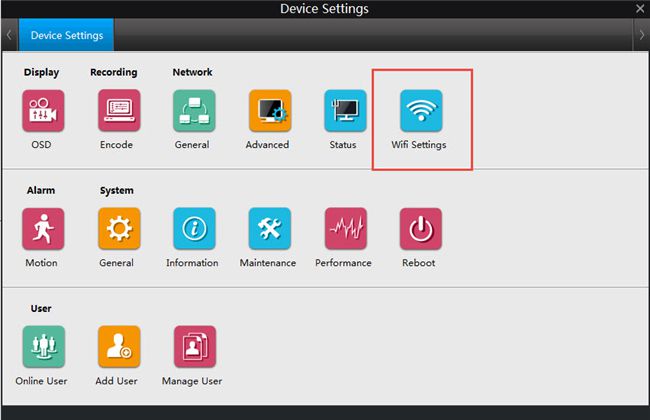
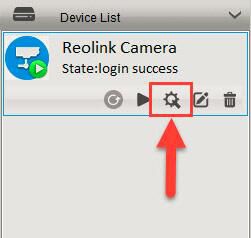
Step 3. Click on “Device Settings”.
Step 4. Click on “WiFi Settings” under “Network“.
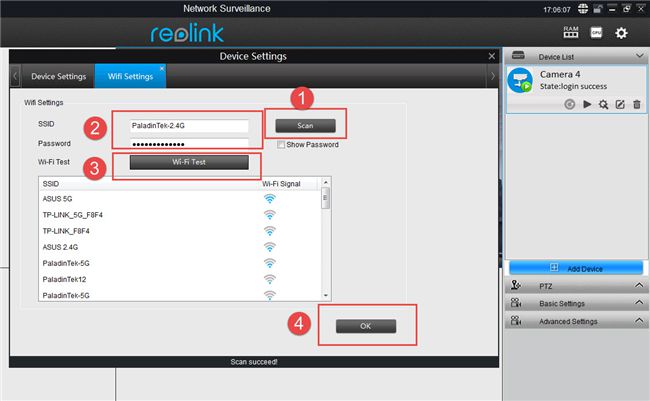
Step 5. Click on “Scan”, then double-click on the SSID you would like to connect and input its password, click on “Wi-Fi Test”, after it shows “Wi-Fi Test Succeed”, click “OK” to save the settings.
Step 6. Please disconnect the Ethernet cable between the camera and the router. Wait for a moment, the camera will connect to the router via Wi-Fi.
Use Reolink App to configure wireless settings:
If you would like to use the smart phone, please follow the steps below:
Step 1. Plug the camera to the router’s LAN port by an Ethernet cable. Make sure the camera is powered on.
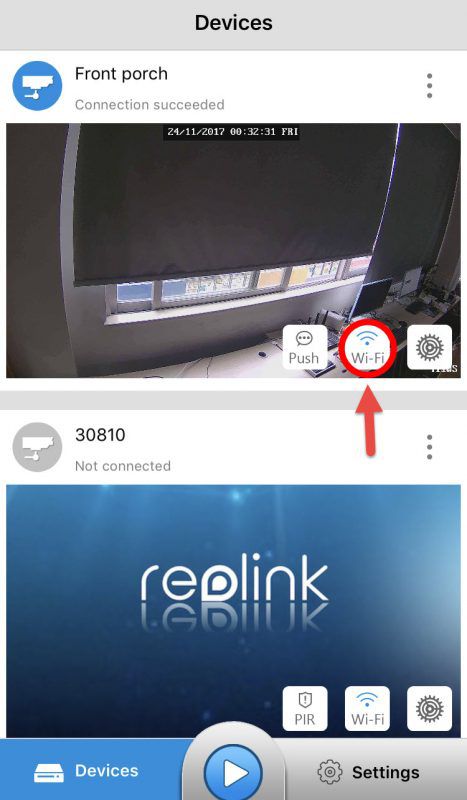
Step 2. Launch Reolink App and login to the camera, tap the “Wi-Fi Settings” button.

Step 3. Please select the SSID you would like to connect and input the password in the “Password” field, tap on “Wi-Fi Test” to test the connectivity.


Step 4. If it shows the success message like this, then you can hit the “Save” icon on the top left-hand to save the settings.


Yet, if it shows the error message like below, turn to Troubleshooting-Wi-Fi Test Failed for help.

Step 5. Disconnect the Ethernet cable betweem the camera and the router. Wait for a moment, the camera will connect to the router via Wi-Fi.

😍 Liên hệ ngay với chúng tôi để nhận được tư vấn và hỗ trợ tốt nhất! 😍
Bắc Ninh Media
📞 Hotline: 0917658468 - 0222 6536789 - 0946748285
🌐 Website: https://bacninhmedia.com
🔗 Facebook: https://facebook.com/cameraquansatbacninh99
Bài viết liên quan
Dịch vụ Lắp đặt hệ thống mạng nội bộ Tin tức cập nhật
Thiết kế, thi công hệ thống mạng LAN, WAN
Trong mỗi doanh nghiệp, cơ quan luôn cần một hệ thống mạng nội bộ để chia sẻ dữ...
Tin tức cập nhật
Bắc Ninh Media thông báo nghỉ tết nguyên đán 2023
Bắc Ninh Media KÍNH CHÚC QUÝ KHÁCH HÀNG NĂM MỚI 2023 SỨC KHỎE – HẠNH PHÚC – THÀNH...
Dịch vụ Lắp đặt camera quan sát Tin tức cập nhật
CHuyên lắp đặt hệ thống camera KCE – Lắp đặt camera quan sát tại Bắc Ninh
Một số khách hàng Công ty TNHH Media Bắc Ninh đang hân hạnh được phục vụ bao gồm:...
Tin tức cập nhật Tin tức nội bộ
Calendar notifications annual vacation of the Company in 2019
Dear customers and your partners, Trading Company Limited Bac Ninh CCTV Media would like to send customers and...
Dịch vụ Lắp đặt cửa từ cổng dò Tin tức cập nhật
Cổng dò kim loại, thi công lắp đặt cổng dò kim loại chất lượng
Với các thiết bị cổng dò kim loại thường xuất hiện tại các khu vực công cộng như: sân bay,...
Tin tức cập nhật
Chúc mừng ngày truyền thống pháp luật Việt Nam 9-11-2021
Từ năm 2013, ngày 9/11 được lấy là ngày Pháp luật Việt Nam. Đây cũng là ngày diễn...
Giải pháp Lắp đặt hệ thống mạng nội bộ
Giải pháp lắp đặt hệ thống mạng cáp quang nội bộ – LAN Quang
Bạn đang cần tư vấn để thi công, lắp đặt hệ thống mạng mạng LAN, mạng máy tính...
Tin tức cập nhật
Soon Security Cameras will be predicting your next move
Security Cameras in Demand As the advancement of housing societies and huge malls has been happening, new and...
Dịch vụ Lắp đặt hệ thống mạng nội bộ Tin tức cập nhật
Cập nhật dự án thi công hệ thống mạng LAN cho công ty Willtech xưởng 2